recycle old fireboxes - X750e and XTM515

I want to recycle some old electronics; Firebox X750e(2) and XTM515(2) but I need to know the correct procedure to reset them to factory or erase our configuration from these boxes before sending to a recycle center.
Will I need to log into the devices, what if I can't remember what those credentials are?
Comments
-
To reset the WatchGuard X750e to factory-default settings, follow these steps:
Power Off the Device: Ensure the X750e is turned off.
Locate the Reset Button: Find the reset button on the back of the device.
Press and Hold the Reset Button: Press and hold the reset button for at least 11 seconds.
Release the Button: After holding for 11 seconds, release the button.
Observe the LEDs: The LEDs will turn off for a few seconds and then turn solid orange or red, indicating the device is resetting.
Reboot to Factory-Default Settings: The device will reboot to factory-default settings.
For the XTM 515 - you can't easily
You need to run in Safe Mode, and then run the Quick Setup Wizard to install a default config.
From the Hardware Guide page 8:
https://www.boc.de/pub/media/documents/xtm525/25_Hardware-Guide-WatchGuard-XTM-515-525-535-545.pdf?srsltid=AfmBOorwqVjr6-5UoVafr2xQQhv60ZUiG43QpfH_yGuekCFf9_KXf0y2Safe Mode
In safe mode, you can get access to an XTM 5 Series device when normal access to the device is lost.
You can also use safe mode to reset device passphrases when you do not know or have forgotten them. To recover the device while started from safe mode, you must use the WSM Quick Setup Wizard or the Web Setup Wizard.You must put the XTM 5 Series device in safe mode to use the setup wizards. In safe mode, the device runs Fireware XTM and is configured with factory-default IP addresses. When you put the device in safe mode, the license files and certificates are saved. You can then use the saved files if you reconfigure a device with one of the setup wizards.
To put an XTM 5 Series device into safe mode, press and hold the down arrow button on the device front panel when you power on the device. Hold down the button until “Safe Mode Starting” appears on the LCD screen. When the device is in safe mode, the model number followed by the word “Safe” appears on the LCD screen and the factory default IP address for Eth1 is 10.0.1.1/24.
1 -
@Bruce_Briggs,
Thank you for the response. I could not find a reset button on the X750, I looked on the back, front, sides etc., so I borrowed from your 515 instructions and held the down arrow down.
It finally came to this in the screen: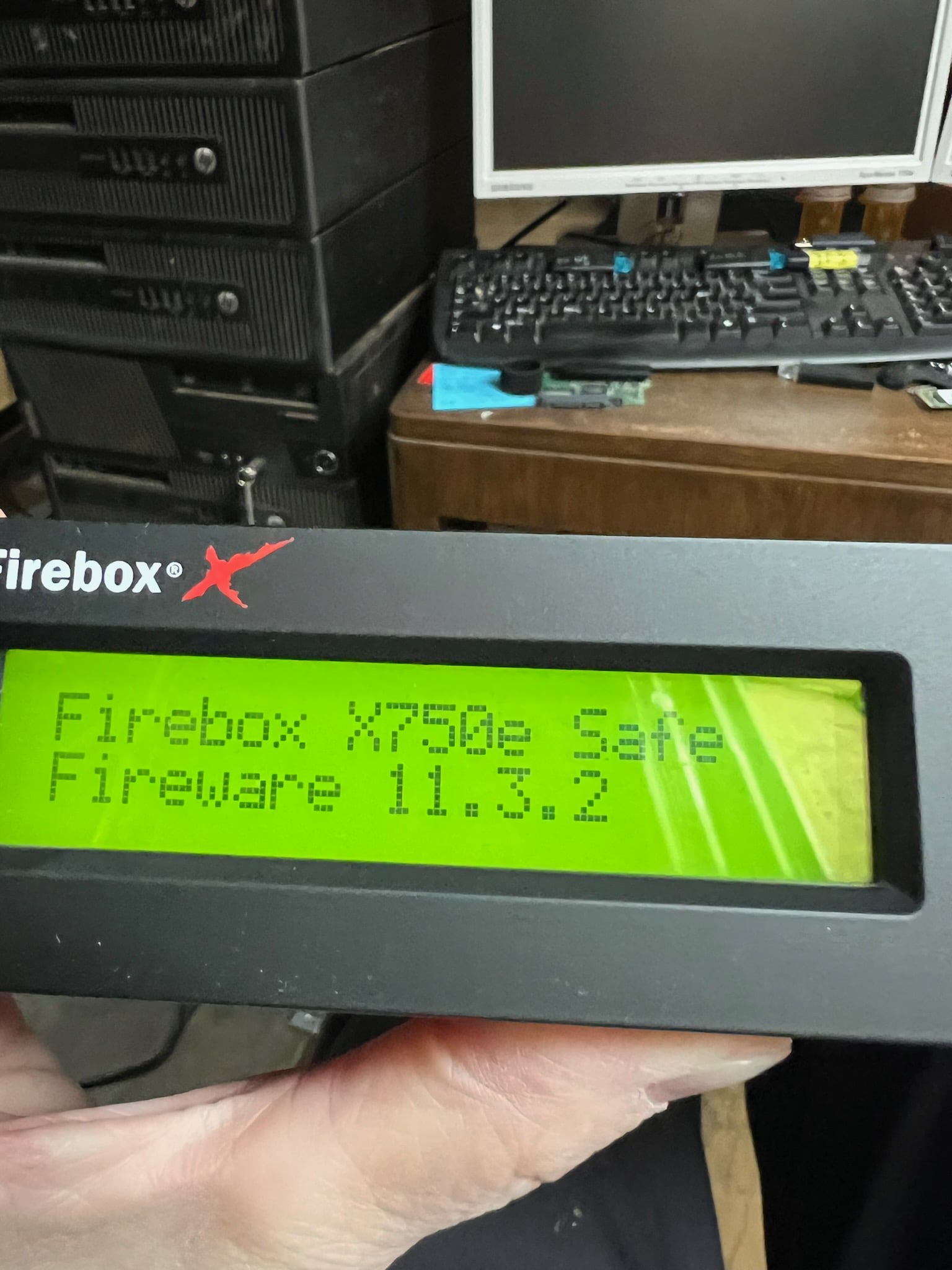
Once I saw it was in 'safe' mode I scrolled through the screens and I found the Eth ports appear to be defaulted to the original IP addresses.
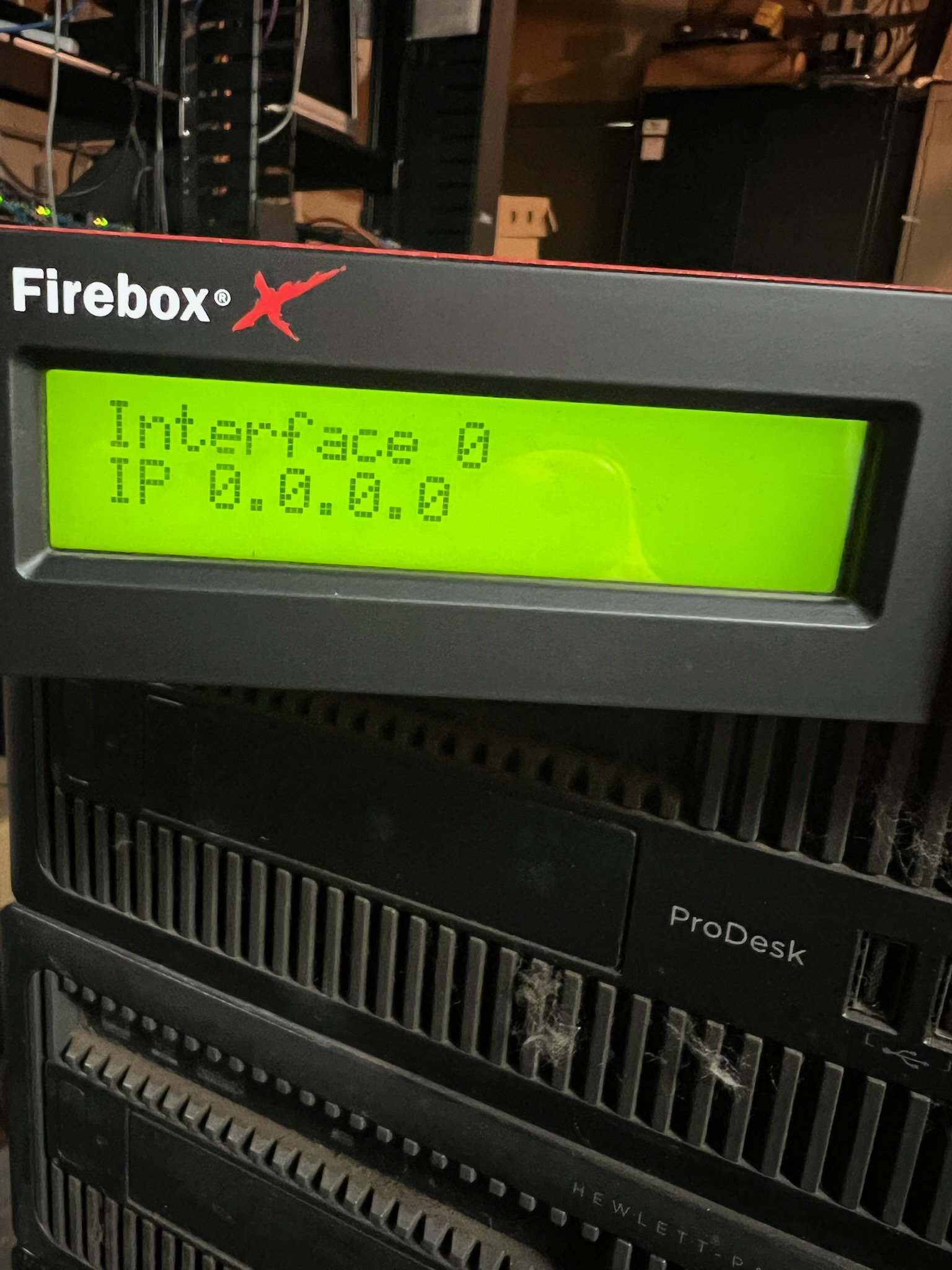
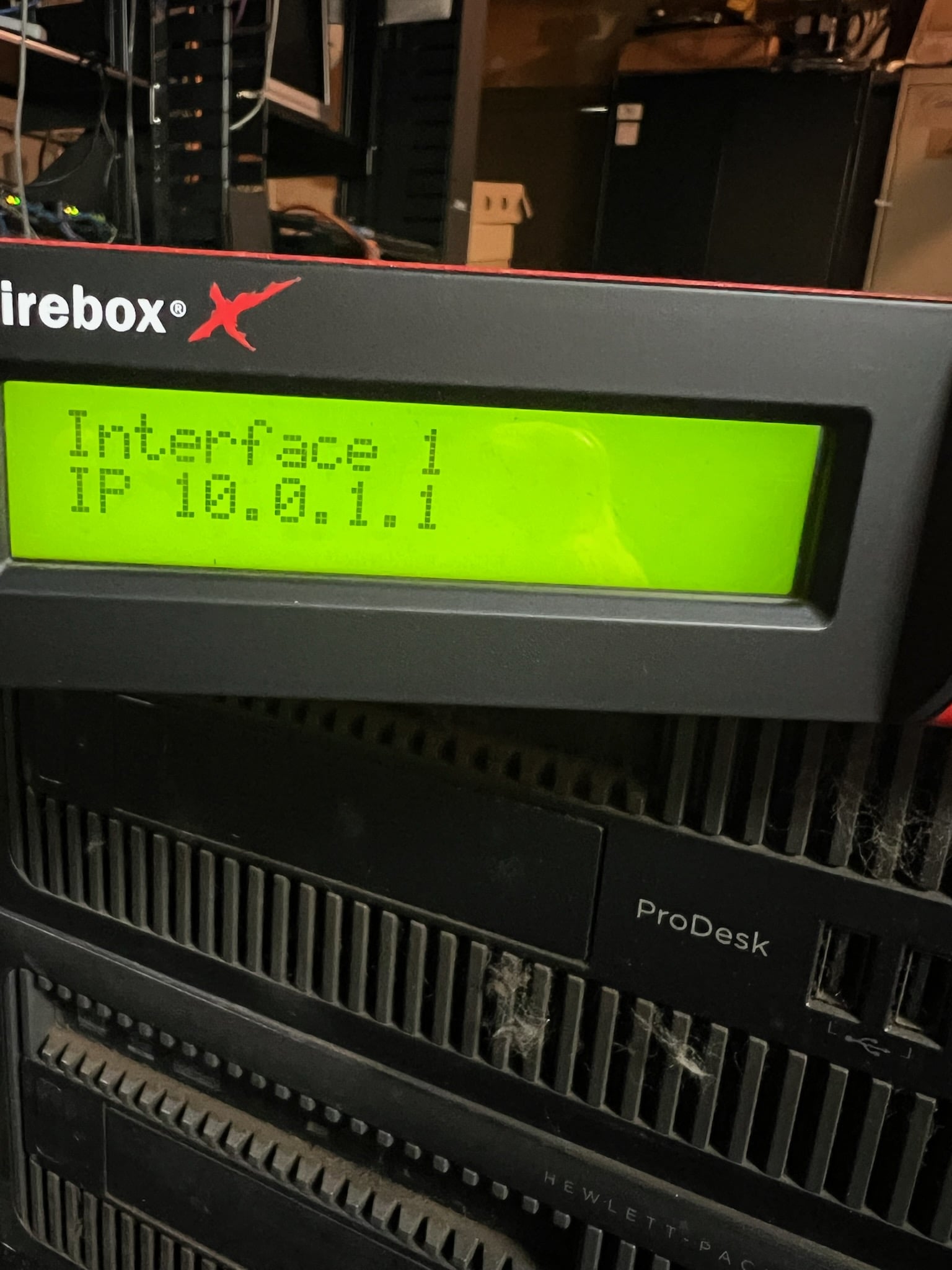
Is this the correct default I should be seeing? Are my config files removed also?
Next, I'm going to work on our XTM515's.
Thank you again,
Brad0 -
Sorry - the reset for the X750e came from WG AI. I stupidly believed that it gave the correct answer, and I did not verify it before posting it.
Since the X750e is a LCD model, you need to run in Safe Mode, and then run the Quick Setup Wizard to install a default config.
Safe mode allows you to run the Quick Setup Wizard only.
Safe mode does not remove the current config or license key from the firewall.1 -
Ah ok! Thank you!
0 -
The reset on the XTM 515's went fine, both have just a basic policy now.
The X750e doesn't want to work with the Quick Setup Wizard.
"The wizard was not able to find the device."
The 750 is in Safe mode.I can log into the X750 through the WSM 12.9.0, it shows connected but if I try to open FPM I get this error message about TLS10.
"A connection could not be established to the Firebox 10.0.1.1. Failed to read servers response. The server selected protocol version TLS10 is not accepted by client preferences [TLS12]."
Is there a way around this? I tried finding older software for the X750 and I can't find anything back that far.
TIA
bford0 -
From the v11.10.4 Release Notes:
• Ability to disable the TLS v1.0 protocol for connections to your WSM Management Server and Log Server
This suggests that you can use WSM v11.10.4 or lower for this access.
Open a support case with Customer Care and request a WSM version which supports Quick Setup Wizard access using TLS v1.0 to a X750e
1 -
Fireware XTM v11.3.8 seems to be the last release which supports a X750e.
So presumably WSM v11.3.x should work for you as well as some higher versions.1 -
Again, Thank You very much for your response and educated answers!
I downloaded WSM 11.10.4 and FSM XTM 11.3.8; although I didn't need the XTM 11.3.8 but I was able to get into the X750e and save a default basic configuration.
All that just to be able to hand it over to the recyclers! I feel much better not having my configuration out there somewhere.
brad
0
